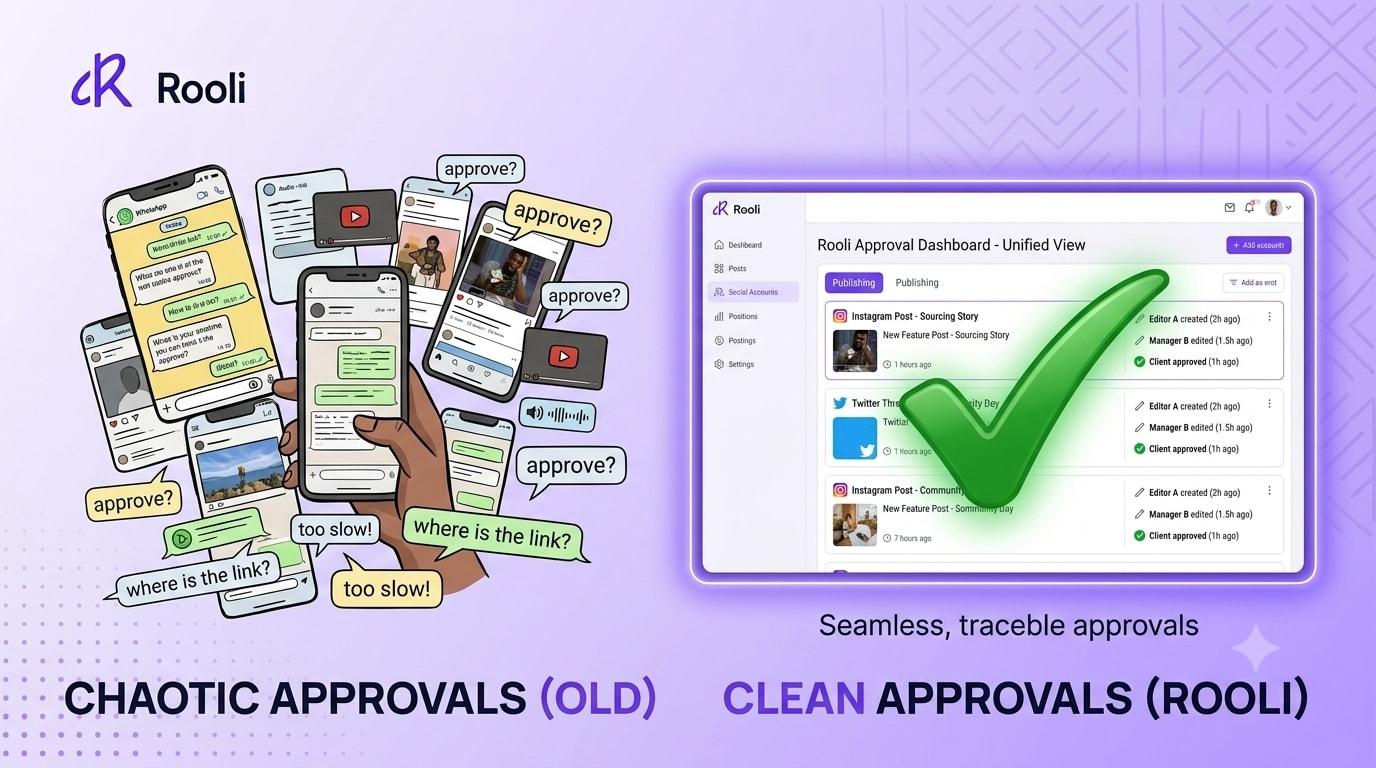
It is 6:58 pm on a Thursday. The post was meant to go live at 7. You sent the screenshot to the client on WhatsApp at noon. Nothing. You followed up at 3. Read, no reply. At 6:59 the message finally lands: change the picture. Now you are editing a design on your phone, in traffic, while your posting window closes.
If you run content for a brand, a team, or three or four clients at once, you have lived this exact evening. The problem was never your content. The problem is that your approval process lives inside a chat app that was never built for it. This guide breaks down what a social media approval workflow is, why working without one quietly costs you money and sleep, and exactly how the new Team and Post Approvals feature on Rooli fixes it from the first draft to the moment a post goes live.
What Is a Social Media Approval Workflow?
A social media approval workflow is a defined path a post travels before it publishes. Someone creates it. Someone with authority reviews it. Feedback is recorded. The post is either approved and scheduled, or returned with a reason. Every step is visible, and every decision has a name and a timestamp attached to it.
That last part is what separates a real workflow from a group chat. In a group chat, approval is a thumbs up emoji that nobody can find two weeks later. In a workflow, approval is a record. When a client asks who signed off on a post, you do not scroll. You look at the trail.
The Old Way: Approvals by Screenshot
Here is what approval looks like for most African social media managers and agencies today. You design the post. You screenshot it. You send it into a WhatsApp thread. You wait. The feedback arrives as a voice note, or as three separate messages, or not at all. You post the wrong version because the final final version was in a different chat. A campaign post misses its slot because the person who needed to approve it was in a meeting. And when something goes wrong, there is no record of who approved what.
None of this means your team is careless. It means your process depends on memory and chat scrollback. The fix is not more follow up messages. The fix is moving approval into the same place the post already lives.
How Post Approvals Work on Rooli
Rooli now ships with Team Management and Post Approvals built into the dashboard. Here is the full journey of a post under the new system.
1. Your role decides your path
Every member of a Rooli workspace has a role, and the role determines whether a post publishes directly or goes through review. A Workspace Owner or Social Media Manager publishes directly. A Contributor always submits for approval. That single rule is what makes the whole system work: the people who should have final say automatically get it, and nobody else can skip the queue.
2. Submit a post and pick your reviewer
When a Contributor creates a post, Rooli tells them plainly: your post goes to an Editor or the Workspace Owner for a quick look before it rolls out. They choose a reviewer from a dropdown right inside the post editor, set the schedule, and submit. No separate app, no exporting, no screenshots.

Choosing a reviewer inside the Rooli post editor. Contributors pick an Editor or the Workspace Owner at the point of submission.
3. The reviewer gets an email immediately
The moment a post is submitted, the assigned reviewer receives an email telling them a post is waiting. The creator also gets a confirmation email showing exactly who the post went to, with a note that it will not go live until it is approved. Both sides know the status at all times. Nobody is guessing whether the message was seen.
4. Feedback stays on the approval trail
Inside the Approvals view, the reviewer sees the post exactly as it will appear on each platform, from the Instagram preview to the X preview. If something needs to change, they leave a note in the comment box, and that note is saved to the post's approval trail. The creator gets an email about the comment, makes the change, and replies on the same trail. The conversation about the post lives on the post. Forever.

The approval panel on Rooli: comments are saved to the post's approval trail, and one tap approves and schedules.
PRO TIP
Use the comment box for every note, even the small ones. A message that says change the picture is useful today. The same message saved to the audit trail is proof of what was requested and when, which settles client disagreements before they start.
5. Approved posts move straight to Scheduled
When the reviewer clicks Approve and schedule, the post moves from Pending Approval to Scheduled and publishes at its set time. There is no extra step between approval and publishing. The reviewer's click is the handoff.
6. Rejected posts come back with a reason
Rejection on Rooli is not a dead end and it is never silent. A reviewer must type a reason before rejecting. The creator receives an email with the post, the reviewer's reason, and an Edit and resubmit button. The post returns to their drafts marked as Rejected, ready to be fixed and sent back for review. Nobody finds out three days later that their post never went out.

The rejection email a creator receives: the post, the reviewer's written reason, and an Edit and resubmit button.
7. The Overtime safety net
Here is the situation every social media manager fears: a post is scheduled for 7 pm, approval does not come in time, and 7 pm passes. On Rooli, that post is flagged as Over Time. The dashboard states clearly that the scheduled time has passed and the post must be rescheduled before it can be approved. The reviewer picks a new date and time, reschedules, and approves. The post survives. Late approval becomes a delay, not a loss.

A post flagged Over Time: it must be given a new date and time before it can be approved. Delayed, not lost.
The Four Team Roles on Rooli, Explained
Four roles are live in every workspace today: Workspace Owner, Social Media Manager, Editor, and Contributor. Here is what each one can and cannot do.

The four live roles in every Rooli workspace, from the Roles and Permissions tab.
Workspace Owner
Full control of the workspace, and never gated by approvals. The Workspace Owner creates, edits, deletes, and publishes posts directly, approves or rejects any post submitted for approval, manages workspace settings, members, and roles, connects and disconnects social accounts, and views analytics and billing. Only the Workspace Owner can approve or reject posts sent to any team member's queue.
Social Media Manager
The engine room role. A Social Media Manager creates, schedules, and publishes content without approval, and approves Contributor posts. When they want another pair of eyes on something sensitive, they can request a second opinion before publishing. Trust with a safety valve.
Editor
A senior content role. Editors create, edit, delete, and schedule content, and they approve and reject posts submitted by Contributors. In strict mode, an Editor's own posts also require approval, which suits teams that want review on everything.
Contributor
The junior or in training role, and the safest way to grow a team. Contributors write, edit, and schedule posts, submit them for approval, choose their reviewer, and see the status and feedback on their own work. What they cannot do matters just as much: they cannot publish without approval, cannot approve or reject anyone's posts, and cannot delete posts, view analytics, or manage the inbox. A Contributor can do real work on day one without any risk of something going live by accident.
PRO TIP
Start every new hire and intern as a Contributor, even experienced ones. Promote them to Editor or Social Media Manager once they know the brand voice. Changing a team member's role takes seconds in Team Management, so nobody is stuck where they started.
Why This Matters for African Teams and Agencies
If you are an agency running multiple client brands, this feature changes the texture of your week. Each client workspace gets its own team, its own roles, and its own approval trail. Feedback stops living in five WhatsApp threads and starts living on the posts themselves. Your juniors can draft at full speed while you keep final say on everything that carries a client's name.
If you are a small business owner, this is how you finally hand over your social media without handing over your reputation. Your team drafts, you approve from your phone, and the record of every decision stays in one place. And because Rooli is built and priced for African teams, you get all of this in Naira, on infrastructure designed for how we actually work.
Getting Started with Team and Post Approvals

Team Management on Rooli: members, roles, and invitations in one place.
Open your Rooli dashboard, go to Workspace, then Team. From Team Management you can invite a member by email and assign their role at the point of invitation, add existing workspace members, track pending invites, and review every role's permissions in the Roles and Permissions tab. Roles can be changed at any time as your team grows.
Team roles and post approvals are included on the Business plan, which covers 3 users, and on the Rocket plan, which has unlimited users. The Business plan at ₦169,344 per year is where most growing teams start, and every plan begins with a 14-day free trial at rooli.co.
Frequently Asked Questions
What is a social media approval workflow?
It is a defined path a post follows before publishing: creation, review, recorded feedback, and a final approval or rejection. On Rooli this entire path runs inside the dashboard, with email notifications and an audit trail attached to every post.
Who can approve posts on Rooli?
Editors and the Workspace Owner approve or reject posts submitted by Contributors, and Social Media Managers approve Contributor posts. The Workspace Owner is the only role that can approve or reject posts sent to any team member.
What happens when a post is rejected?
The reviewer must give a reason. The creator receives an email containing the post and the reviewer's reason, and the post returns to their drafts marked as Rejected. They can edit it and resubmit for approval in a few clicks.
What happens if a post is not approved before its scheduled time?
The post is flagged as Over Time. It cannot be approved until it is given a new date and time, so the reviewer reschedules it and then approves. The post is delayed, not lost.
Can a Contributor publish a post without approval?
No. Contributors can write, edit, and schedule posts, but nothing they create goes live until a Social Media Manager, an Editor, or the Workspace Owner approves it.
Do reviewers get notified when a post needs approval?
Yes. The assigned reviewer receives an email the moment a post is submitted, and the creator receives a confirmation showing who is reviewing it. Creators are also emailed when a reviewer leaves a comment or makes a decision.
Which Rooli plans include team roles and post approvals?
The Business plan at ₦169,344 per year includes 3 users with post approvals, and the Rocket plan at ₦691,488 per year includes unlimited users. Both start with a free trial at rooli.co.
Coming Next
Next in this series: Social Media Team Roles Explained, a deeper look at who should post, edit, and approve on your team, with real structures for solo managers, small businesses, and agencies.
rooli.co • AI-Powered Social Media Management Built for Africa