
Every social media manager has been there. You've scheduled a week of content. Something silently failed at 9am. A client messages at 11am asking why their morning post never went up. You scramble through tabs trying to find the post, check the status, figure out what went wrong, and reschedule it before anyone else notices.
This is exactly the problem the Rooli Content Library solves. It's your single source of truth for every post in every stage of its life. Drafts, scheduled posts, published posts, the ones pending approval, the ones publishing right now, and yes, the ones that failed. All in one place. All filterable. All clickable for full details.
If you manage social media for yourself, a brand, or a client roster, this is the one feature you'll open every single day. Here's exactly how to use it.
What Is the Rooli Content Library?
The Content Library is Rooli's post management hub. Think of it as the master list of every piece of content you've ever created inside Rooli, organised by status, with quick filters to find exactly what you need.
The page itself describes it best: "Manage posts awaiting approval and view your approved content."
Where the Content Scheduler is for planning what to post, and the Campaigns view is for grouping posts together, the Content Library is for tracking what's actually happening with your content right now. Did the Friday post publish? Is the Wednesday post still in draft? Is anything stuck on Pending Approval? You'll know in seconds.
Where to Find the Content Library
Log into your Rooli dashboard at rooli.co. Tap the menu icon at the top left to open the sidebar.
In the sidebar menu, you'll see the platform's main navigation in this order:
Dashboard
Content Scheduler
Campaigns
Content Library
Social Accounts
AI Assistant
Analytics
Brand Kit
Team
Inbox
Tap Content Library (it's the fourth item, with the image icon next to it).

You'll land on the Content Library page with every post you've created so far.
What You'll See on the Content Library Page
The Content Library displays your posts as visual cards. Each card gives you everything you need to know at a glance:
The post visual. If you uploaded an image or graphic for the post, it shows up here. If the post is text only or you haven't uploaded a visual yet, you'll see a camera icon placeholder.
The post title or first line. For example, "Setting up Rooli takes less th..." or "Rooli is live. Africa's first...". This makes it easy to identify each post even without opening it.
Content type. Tells you whether the card is a Post or another content format.
Status badge. Colour coded so you can scan the whole page in seconds. Yellow for Scheduled, green for Success, and others for the rest of the statuses.
Platform icon. Shows which social media account the post is heading to. Instagram, Facebook, TikTok, LinkedIn or X.
Release date. Either the date the post is scheduled for, the date it was published, or "Not Scheduled" if it's still a draft.
Scroll down the page to see every post in your library. New posts appear at the top by default.
The Filter Post Dropdown: Your Daily Workhorse
At the top of the Content Library page, just below the title and description, you'll see a button labelled Filter Post with a small dropdown arrow next to it. This is the single most important tool on the page.
Tap Filter Post and you'll see seven status options to filter your view by:
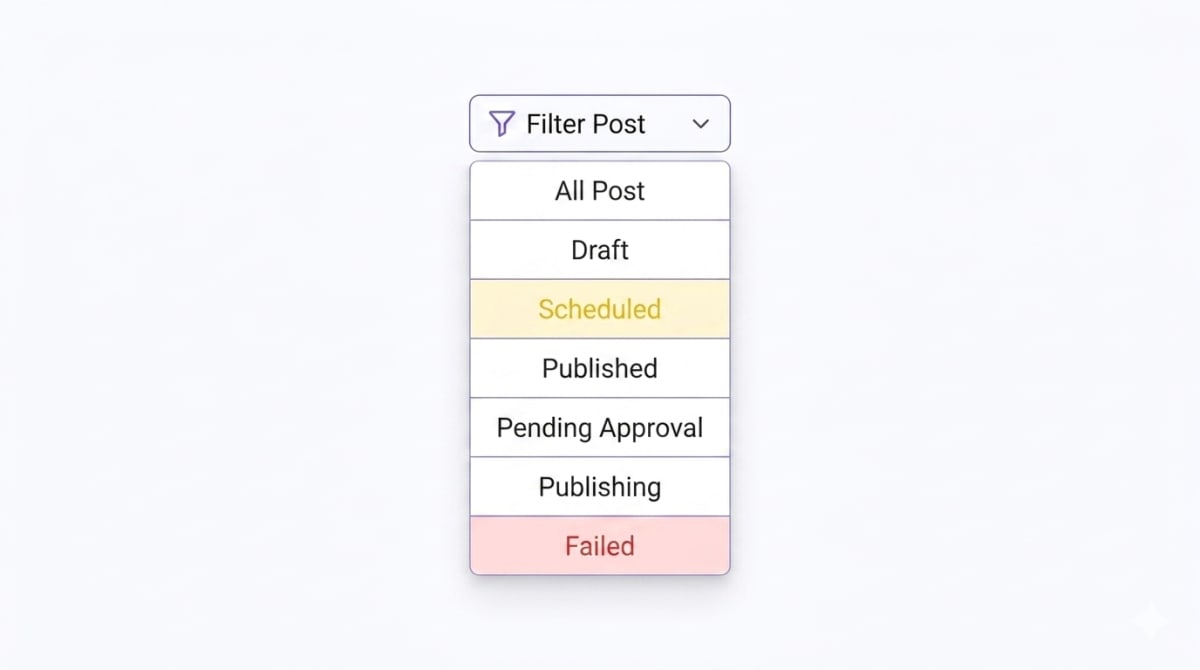
All Post
The default view. Shows every post in your Content Library, regardless of status. Useful when you want a complete overview of everything you've ever created.
Draft
Posts you've started but haven't finished or scheduled yet. Open this filter when you sit down for a planning session and want to clean up half written posts.
Scheduled
Posts queued to publish at a future date and time. This is your forward looking view, perfect for confirming the week ahead is fully booked.
Published
Posts that have already gone live successfully. Open this filter to review what's already in the wild, double check timing, or pull lines for repurposing.
Pending Approval
Posts waiting for a team lead or client to approve before they can be scheduled or published. This is the agency superpower. One tap and you know exactly what's sitting in someone else's inbox blocking your workflow.
Publishing
Posts that are publishing in real time. Usually a short lived status as the post moves quickly to Published or Failed.
Failed
This is the filter that will save your reputation. Posts that didn't publish for some reason (a disconnected social account, an API hiccup, a permission issue). Catching these early means you can fix and reschedule before a client notices.
💡 Pro Tip: Build a daily 60 second habit. Every morning, open the Content Library, switch the filter to Failed, then to Pending Approval. Two taps.

If anything's there, fix it before your first meeting. This single habit prevents 90% of social media "why didn't my post go out" emergencies.
How to View Full Post Details
Each post card in the Content Library is clickable. Tap any card to open the full details view for that specific post.

Inside the post details, you'll see everything you need to understand what's going on with that post: the full caption, the visual at full size, the target platform, the scheduled time, and the current status. This is how you check exactly what went out, exactly when, and exactly to which account.
For posts in Pending Approval, the details view is where you can read the full post and decide whether to approve, edit, or send back for changes. For Failed posts, it's where you can investigate what went wrong and reschedule.
Real World Ways African SMMs Use the Content Library
The Content Library is one of those features that looks simple but quietly changes how you work. Here's how different Rooli users put it to work every week:
Solo SMMs: The Morning Status Check
Filter to Scheduled to see what's going out today. Filter to Failed to make sure nothing's stuck. Filter to Pending Approval if you're waiting on a client. Three taps, total clarity on your day, before you've finished your morning coffee.
Agencies: The Pre Meeting Sweep
Before every client meeting, switch to Pending Approval. Anything sitting there? Nudge the client to approve, or pre empt the conversation. Switch to Published, scroll the past 7 days, and walk into the meeting knowing exactly what shipped and what didn't.
Small Businesses: The Weekly Cleanup
Once a week, switch to Draft. Decide which half started posts to finish and which to delete. Most teams discover they have 5 to 15 forgotten drafts after a few months. Clean them up so your Content Library reflects work in progress, not work abandoned.
Content Creators: The Repurposing Goldmine
Switch to Published. Scroll back through your highest performing posts. Find a top performer from three months ago that new followers have never seen. Refresh it, reschedule it, post it again. Old content, new reach.
💡 Pro Tip: Pair the Content Library with your Analytics tab. Use Analytics to identify which published posts performed best, then use the Content Library to find them and pull lines for repurposing into new content. This is how you stop starting from a blank page every Monday.
Best Practices for the Rooli Content Library
Open it daily. It only takes a minute, and it's the difference between catching a failed post early and apologising to a client at noon.
Use status filters in this order: Failed first (urgent fixes), Pending Approval second (unblock the workflow), Scheduled third (confirm the day), Drafts last (cleanup).
Don't let Drafts pile up. Drafts you haven't touched in 30 days are usually drafts you're never going to finish. Delete them so the Library stays useful.
Treat the platform icons as a checklist. If you're publishing across multiple channels, scan the icons to confirm each post is going to the right platform. It catches the occasional "oh no, I sent this to LinkedIn instead of Instagram" mistake.
Use the Content Library as your weekly review tool. Friday afternoon, filter to Published, scroll the week, take notes on what worked. Then go back to the Content Scheduler and plan smarter for next week.
Frequently Asked Questions
Is the Rooli Content Library the same as a media library for images and videos?
Not quite. The Content Library is a post management hub. It shows every post you've created, organised by status (Draft, Scheduled, Published, Pending Approval, Publishing, Failed). The visuals associated with each post are displayed on the post card, but the library tracks posts, not raw media files.
How do I see what a specific post says without opening it?
Each card shows the first line of the post and the visual at a glance. To see the full caption, scheduled time, target platform and other details, tap the post card to open its full details view.
What does each status badge mean?
Draft: A post you've started but haven't scheduled or published. Scheduled (yellow): Queued to publish at a future time. Publishing: Currently going live. Published / Success (green): Already gone live successfully. Pending Approval: Waiting for a team lead or client to approve. Failed: Did not publish, requires attention.
What should I do if a post shows as Failed?
Tap the post card to open the details. Common reasons for failure include a disconnected social account, a permissions issue, or an API hiccup on the platform side. Reconnect the affected social account in Social Accounts, then reschedule the post. If failures keep happening on a specific platform, contact Rooli support.
How is the Content Library different from the Content Scheduler?
The Content Scheduler is where you create and schedule new posts. The Content Library is where you track every post that already exists in your workspace, across all statuses. Think of the Scheduler as forward looking (planning) and the Library as backward and current looking (tracking and managing).
Can I use the Content Library on mobile?
Yes. The Content Library works on mobile and desktop browsers identically. Open rooli.co on your phone, log in, tap the menu icon, and tap Content Library.
Does the Content Library show posts from all my workspaces?
The Content Library shows posts within the workspace you currently have selected. If you manage multiple workspaces (Rocket plan), switch workspaces using the dropdown at the top of the sidebar to see the Content Library for each one.
Your New Daily Habit
The Content Library doesn't feel exciting on day one. It's not a flashy AI feature or a beautifully designed dashboard. But after a month of using it, you'll wonder how you ever managed social media without it.
Open it daily. Filter by status. Catch failed posts before they cause problems. Clear out forgotten drafts. Confirm your week is fully scheduled. Walk into client meetings already knowing what shipped.
That's how serious social media work gets done. Quietly, consistently, in the background.
Now go open your Content Library.
rooli.co • AI-Powered Social Media Management Built for Africa