
It happens to everyone. You go to log in. You type a password. Wrong. You try the one with the capital letter. Wrong. You try the one with the exclamation mark on the end. Wrong.
Don't panic. Resetting your Rooli password takes about 60 seconds, uses the Forgot Password link on the Sign In page, and you'll be back in your dashboard before you finish reading this article.
Here's exactly how to do it, step by step.
First, Make Sure You're on the Right Guide
Rooli gives you two different ways to update your password, depending on your situation. Picking the right one saves you time.
Use this guide (Reset Password) if you CANNOT log into Rooli because you've forgotten your password. This flow starts from the Sign In page using the "Forgot Password" link and sends a reset email to your inbox. No login required.
Use the Change Password guide if you CAN already log into Rooli and you simply want to update your password from inside the dashboard settings. That flow lives in Account Settings under the Password and Security tab and uses a different verification method.
If you're locked out and can't sign in, you're in the right place. Keep reading.
What You'll Need Before You Start
Access to the email address you used to sign up for Rooli
A stable internet connection
60 seconds
💡 Pro Tip: Not sure which email you signed up with? Check your inbox for the original Rooli welcome email. Search "Rooli" in your email app and the right address will surface.
How to Reset Your Rooli Password: Step by Step
Step 1: Go to the Sign In Page
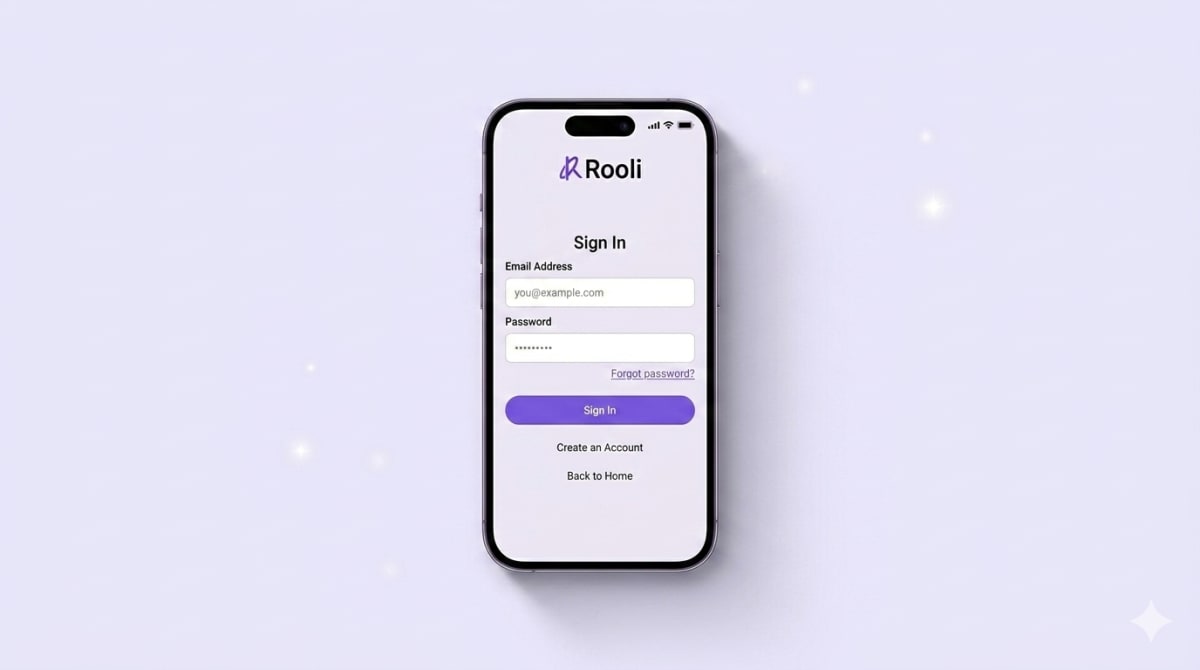
Open your browser and head to rooli.co. Tap the Sign In option. You'll see the Welcome Back screen with two fields: Email and Password.
Just below the Password field, on the right side, you'll spot a small link that says "Forgot password?". That's the one you want
.
Step 2: Request a Password Reset Link
Tap "Forgot password?" and you'll land on the Reset Your Password page. It has one field: Email.
Type the email address you used to sign up for Rooli. Double check it. Even one wrong letter and the reset link will go to the wrong inbox (or nowhere).
Once your email is in, tap the Send Reset Link button. You'll see a confirmation banner at the top of the screen that reads: "Password reset request sent successfully."
💡 Pro Tip: Don't see the success banner? Refresh the page and try again. If it still doesn't work, check that you typed your email exactly as it's registered on your account.
Step 3: Open the Reset Email

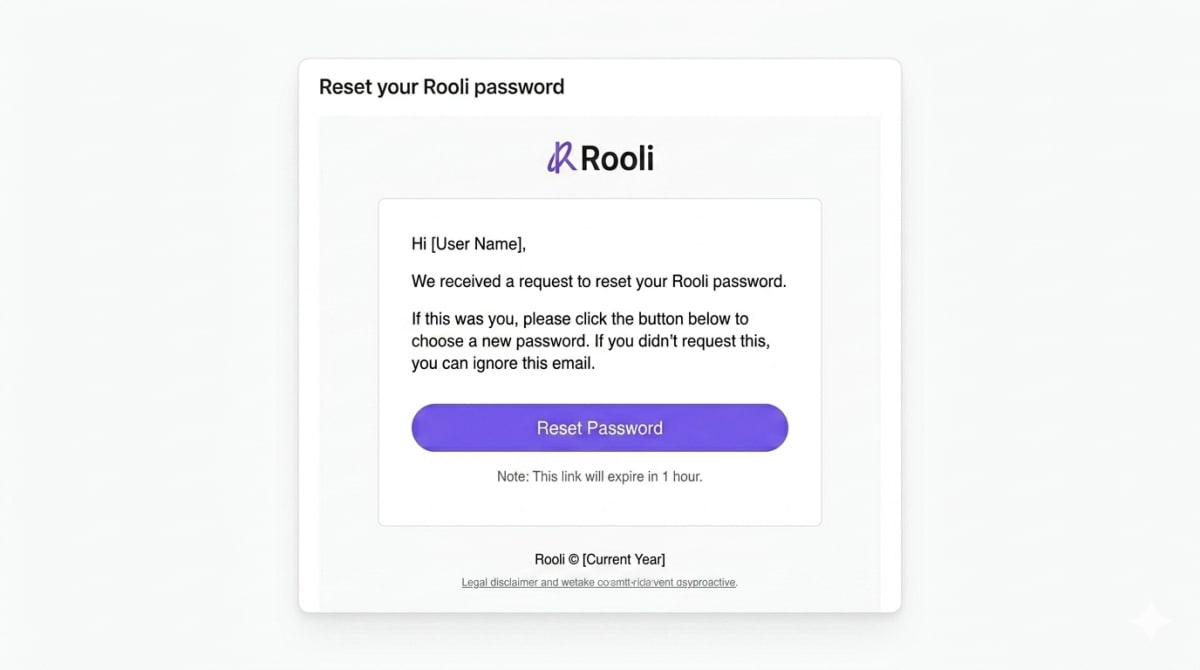
Head to your email inbox. Within a minute or two, you'll receive an email from Rooli with the subject line: "Reset your Rooli password."
Open it. Inside the email, you'll see:
A short message confirming Rooli received your reset request
A big "Reset password" button
A backup URL you can copy and paste into your browser if the button doesn't work
A clear note that the link expires in 1 hour
Tap the Reset Password button. If you don't see the email within a few minutes, check your spam, promotions, or junk folder. Email clients can sometimes filter system emails out of the main inbox.
💡 Pro Tip: The reset link expires in 1 hour. If you don't use it within that window, you'll need to request a new one. So once you start, finish the process in one sitting.
Step 4: Set Your New Password
Tapping the Reset Password button in the email takes you to the Set Your New Password screen on rooli.co. You'll see two fields:
Password (enter your new password here)
Confirm Password (type the exact same password again)
Both fields have an eye icon on the right side so you can show or hide what you're typing. Useful when you want to double check there are no typos before you save.
Once both passwords match, the Reset Password button at the bottom will activate. Tap it. You're done.
Rooli will sign you in automatically or send you back to the Sign In page to log in with your fresh password. Either way, you're back in the dashboard within seconds.
How to Choose a Strong Rooli Password
Since you're setting a new password anyway, make this one count. A few quick rules that genuinely protect your account:
Use at least 12 characters. Length beats complexity. A long passphrase like "sunnyLagosMornings9" is harder to crack than a short one with special characters.
Mix letter cases, numbers and one symbol. Not because it's needed, but because it raises the strength bar without making the password impossible to remember.
Don't reuse a password from another account. If one of those other accounts ever leaks, the leak doesn't reach your Rooli dashboard too.
Skip personal details. Birthdays, names of family members and your pet's name are all weak choices. They show up in social engineering attacks faster than you'd think.
Use a password manager if you can. Apple Passwords, Google Password Manager, 1Password, Bitwarden. Pick one. Let it generate and remember strong passwords for you.
💡 Pro Tip: Managing social media for clients? A password manager isn't optional. You'll thank yourself the first time you need to share access with a teammate without sending the password in a WhatsApp chat.
Troubleshooting Common Issues
I didn't receive the reset email
Check your spam, promotions and junk folders first. Add no-reply@rooli.co to your contacts so future emails land in your main inbox. If you still don't see it after 5 minutes, request the reset link again. Make sure you're typing the exact email you used to sign up.
The reset link expired
Reset links expire 1 hour after they're sent. Just go back to rooli.co, tap Forgot Password again, and request a fresh link. Always use the most recent email you receive.
My new password isn't being accepted
Make sure both Password fields match exactly. Even one extra space or a different letter case will block the reset. Use the eye icon to view what you've typed and confirm both fields match before tapping Reset Password.
I didn't request a password reset but got an email
Don't tap the reset link. Your password is still safe until you actually use the link. The reset email simply lets you ignore it and move on, your account won't change. If you keep getting unexpected reset emails, it may be worth changing your password as a precaution and reviewing recent account activity.
Frequently Asked Questions
What's the difference between Reset Password and Change Password?
Reset Password is for users who CAN'T log into Rooli because they've forgotten their password. It's accessed from the Forgot Password link on the Sign In page and works through an email reset link. Change Password is for users who CAN already log in and just want to update their password from inside the dashboard settings. Both result in a new password. Pick the flow that matches your situation.
How long does the Rooli password reset link last?
Your reset link is valid for 1 hour from the time it's sent. After that, you'll need to request a fresh one from the Sign In page.
Can I reset my password from the Rooli mobile browser?
Yes. Rooli works on mobile browsers and the password reset flow looks exactly the same. Just open rooli.co on your phone, tap Forgot Password, and follow the same four steps.
I signed up with Google. Do I still have a Rooli password?
If you signed up using "Continue with Google," you don't have a separate Rooli password. To sign in, just use the Continue with Google option on the Sign In page. If you'd like to set a password as a backup login method, contact Rooli support.
Will resetting my password log me out of other devices?
Yes. For security reasons, changing your password signs you out of every device where you were logged in. You'll need to sign in again on each device with your new password.
What if I no longer have access to my Rooli email?
If you've lost access to the email address tied to your Rooli account, contact Rooli support directly. The team will guide you through the account recovery process safely.
Back in the Dashboard
That's it. Four steps, about a minute, and your account is secure again. Bookmark this guide for the next time it happens (and it will, eventually, to everyone).
Now go schedule those posts.
rooli.co • AI-Powered Social Media Management Built for Africa