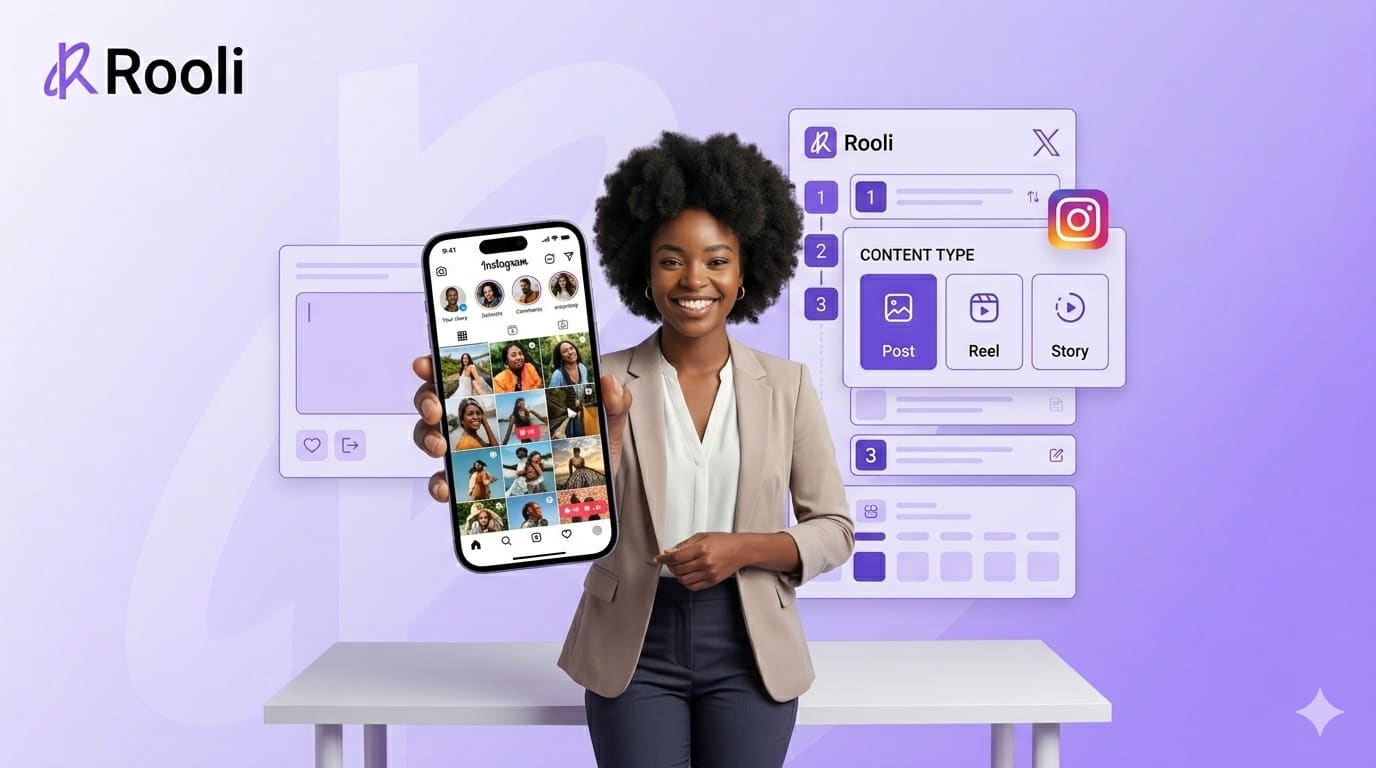
Instagram is where most African businesses and creators build their primary audience. Rooli lets you schedule every type of Instagram content from one dashboard -- regular posts, Reels, Stories and carousels -- without ever having to open the Instagram app to post manually.
This guide walks you through exactly how to do it.
Before You Start
Make sure your Instagram account is connected to Rooli. Go to Social Accounts in the sidebar and confirm your Instagram account shows as connected.
💡 Important: Your Instagram account must be a Professional Account (Business or Creator) to connect to Rooli. Personal Instagram accounts cannot be connected to third-party scheduling tools. To switch, go to your Instagram settings, tap Account, then Switch to Professional Account.
Understanding Instagram Content Types in Rooli
When you create a post in Rooli and select Instagram as your platform, you will see a Content Type dropdown with four options. Each one tells Instagram what kind of content you are publishing. Here is what each one means:
Post
A regular feed post. Use this for single images, carousels (multiple images uploaded together) and standard video posts that are not Reels. This is the default content type.
Reel
A short-form vertical video up to 90 seconds. Reels get significantly more reach than regular posts on Instagram because the algorithm pushes them to non-followers. If you are posting a video, always select Reel as your content type.
Story
A temporary post that disappears after 24 hours. Stories appear at the top of your followers feeds and are great for behind-the-scenes content, quick updates, polls and direct CTAs. Use Story for time-sensitive content.
💡 Pro Tip: For maximum reach on Instagram right now, prioritize Reels over regular posts. The Instagram algorithm consistently gives Reels more distribution to new audiences than any other content type.
How to Schedule an Instagram Post or Carousel Using Rooli
Step 1: Open the Create New Post panel
On mobile, tap the dark + button at the top of your screen or tap the + next to any day on the calendar. On desktop, click the Create Post button.
Step 2: Write your caption in the Content field
Type your caption under the Compose tab. Instagram allows up to 2,200 characters per post but the first 125 characters show before the read more cut so make your opening line count. Rooli shows a character counter at the bottom right of the content field.
Step 3: Upload your image or images
Scroll to the Media section and click Upload Media or drag and drop your files in. You can upload up to 5 files at 8MB each. If you are uploading multiple images for a carousel, upload all of them here and drag to reorder them in the sequence you want them to appear.
Step 4: Crop your image if needed
When you upload an image, Rooli opens a Crop Image tool automatically. Choose the ratio that fits your post. The options are 1:1 for a square post, 4:5 for a portrait post which performs well on Instagram, 1.91:1 for a landscape post and 9:16 for Stories and Reels. Select your ratio and click Crop and Upload.
Step 5: Select your Content Type
Scroll down to Content Type and select Post for a regular feed post or carousel. If you uploaded multiple images, Rooli will automatically treat it as a carousel when set to Post.
Step 6: Select your Instagram account under Publish to
In the Publish to section, select your Instagram account. You can also select other platforms at the same time if you want to cross-post. Use Override Content if you want a different caption for Instagram versus what you are posting elsewhere.
Step 7: Set your timezone and schedule
Confirm your timezone is set to West Africa Time (WAT). Click the Schedule At field and choose your date and time. Best times to post on Instagram in Nigeria are 7am to 9am and 7pm to 10pm.
Step 8: Click Schedule Post
Your post is now scheduled. It will go live on Instagram automatically at the time you set.
How to Schedule an Instagram Reel Using Rooli
Scheduling a Reel follows the same steps as a regular post with two differences.
1. Upload your video file in the Media section. Make sure it is vertical (9:16 ratio) and under 8MB.
2. In the Content Type dropdown, select Reel instead of Post.
3. Complete the remaining steps (select account, set timezone, schedule) and click Schedule Post.
Rooli will publish your Reel to Instagram automatically at the scheduled time.
💡 Pro Tip: Always add subtitles to your Reels before uploading. Most people watch videos without sound. Subtitles increase watch time significantly which directly impacts how far Instagram distributes your Reel.
How to Schedule an Instagram Story Using Rooli
Stories follow the same flow but with one key difference in the Content Type selection.
1. Write your caption or leave it blank. Stories are usually visual-first.
2. Upload your image or video. Use the 9:16 crop ratio for Stories.
3. In the Content Type dropdown, select Story.
4. Select your Instagram account, set your schedule and click Schedule Post.
Your Story will go live at the scheduled time and disappear automatically after 24 hours as normal.
Frequently Asked Questions
Can I schedule Instagram carousels using Rooli?
Yes. Upload multiple images in the Media section (up to 5 files). Set the Content Type to Post and Rooli will publish them as a carousel in the order you arranged them. Drag to reorder before scheduling.
What image sizes work best for Instagram in Rooli?
Use the Crop Image tool inside Rooli to set your ratio before uploading. For feed posts use 1:1 (square) or 4:5 (portrait). For Reels and Stories use 9:16 (vertical). For landscape posts use 1.91:1.
Can I post to Instagram and TikTok at the same time?
Yes. In the Publish to section, select both your Instagram and TikTok accounts. Rooli will publish to both platforms simultaneously at the scheduled time. If you want different captions for each platform, use the Override Content feature and add a segment for each platform.
Why is my Instagram account not showing up in Publish to?
Your Instagram account may not be connected yet. Go to Social Accounts in the sidebar and check. Also make sure your Instagram account is a Professional Account (Business or Creator). Personal accounts cannot connect to Rooli.
Can I schedule Instagram Stories using Rooli?
Yes. When creating your post, select Story from the Content Type dropdown. Upload your image or video using the 9:16 ratio, set your schedule and click Schedule Post. Your Story will go live automatically.
What is the character limit for Instagram captions in Rooli?
Instagram allows up to 2,200 characters per caption. Rooli shows you a character counter as you type so you can keep track. Remember that only the first 125 characters show before the read more cut so lead with your strongest line.
Next Up: Posting on Facebook with Rooli
Now that your Instagram content is scheduled, the next guide covers how to post on TikTok using Rooli -- including how to repurpose your Instagram Reels as TikTok videos without starting from scratch.
Up next: How to Post on TikTok Using Rooli. Schedule videos, add captions and grow your TikTok audience on autopilot.
rooli.co • AI-Powered Social Media Management Built for Africa